


PowerPoint Online: Optimize images using the image editor
Show me similar content
Microsoft 365 Hacks
Images play a central role in the impact of presentations. At the same time, in everyday work, there is rarely enough time or access to specialized tools to professionally prepare images in advance. PowerPoint Online addresses this issue with a built-in, AI-powered image editor that allows for direct editing within the presentation.
The image editor automatically detects relevant image areas, optimizes cropped sections, and assists with basic image corrections such as brightness, contrast, or focus. This allows images to be quickly adapted to the specific slide layout and made more visually consistent. Especially for frequently used presentations or last-minute adjustments, AI support offers a clear efficiency advantage and helps ensure a consistent visual appearance.
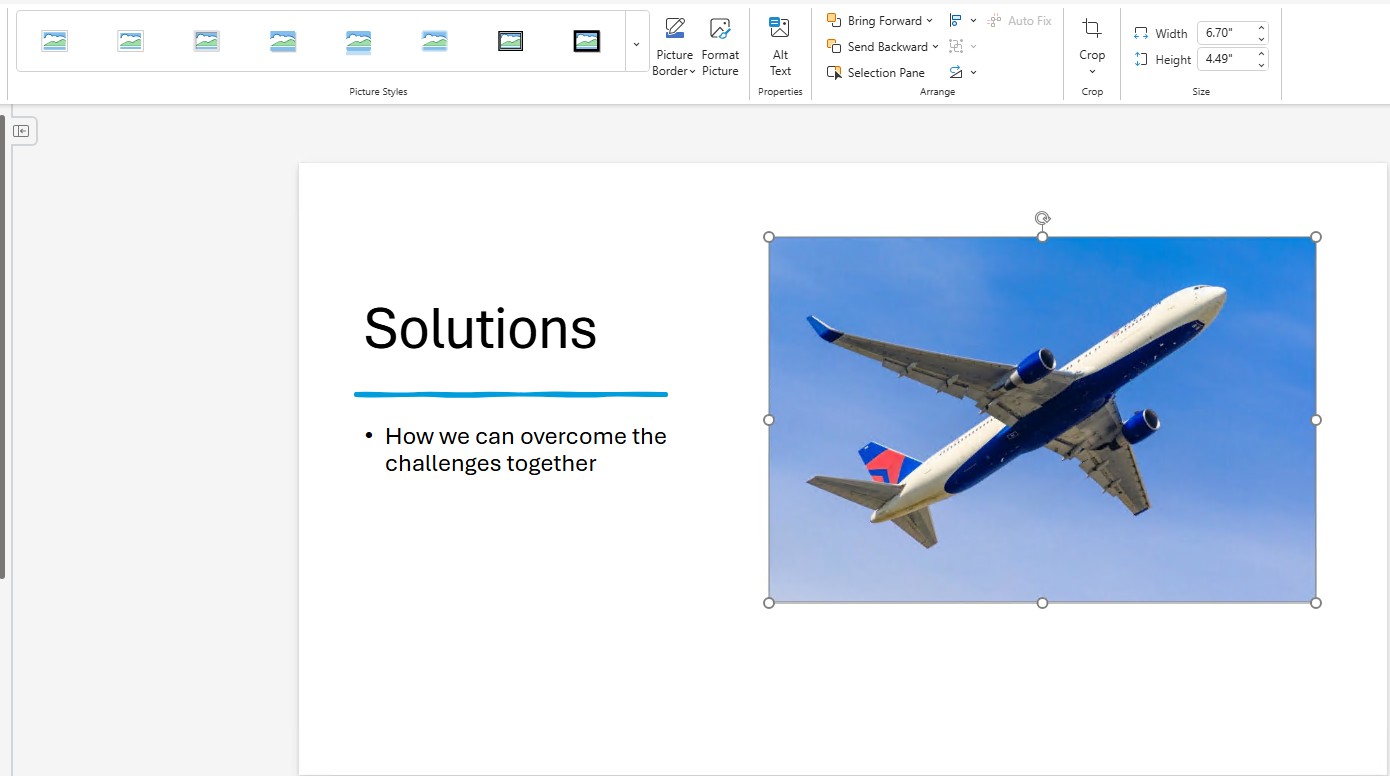
1. Select an image
Click on Image and then on Edit Image. Clicking the Enhance button will take you to a selection of options that allow you to optimize your image in specific ways.
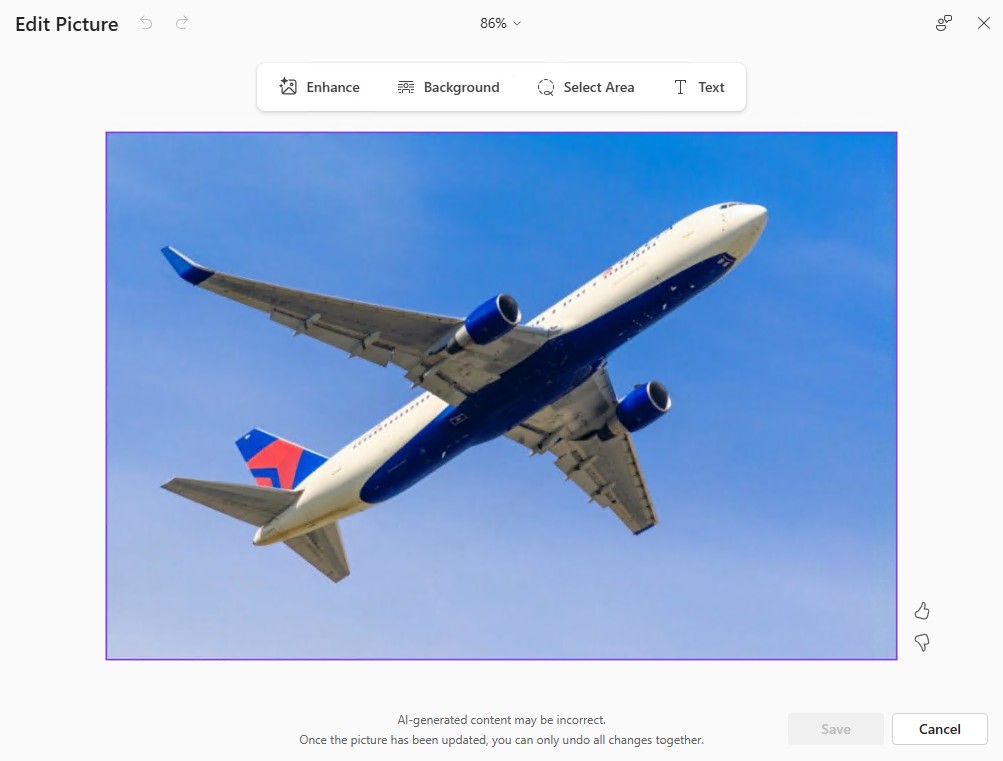
2. Open the image editor
Click on the image, then click Edit Image. Clicking the “Enhance” button will take you to a selection of options for optimizing your image as you like.
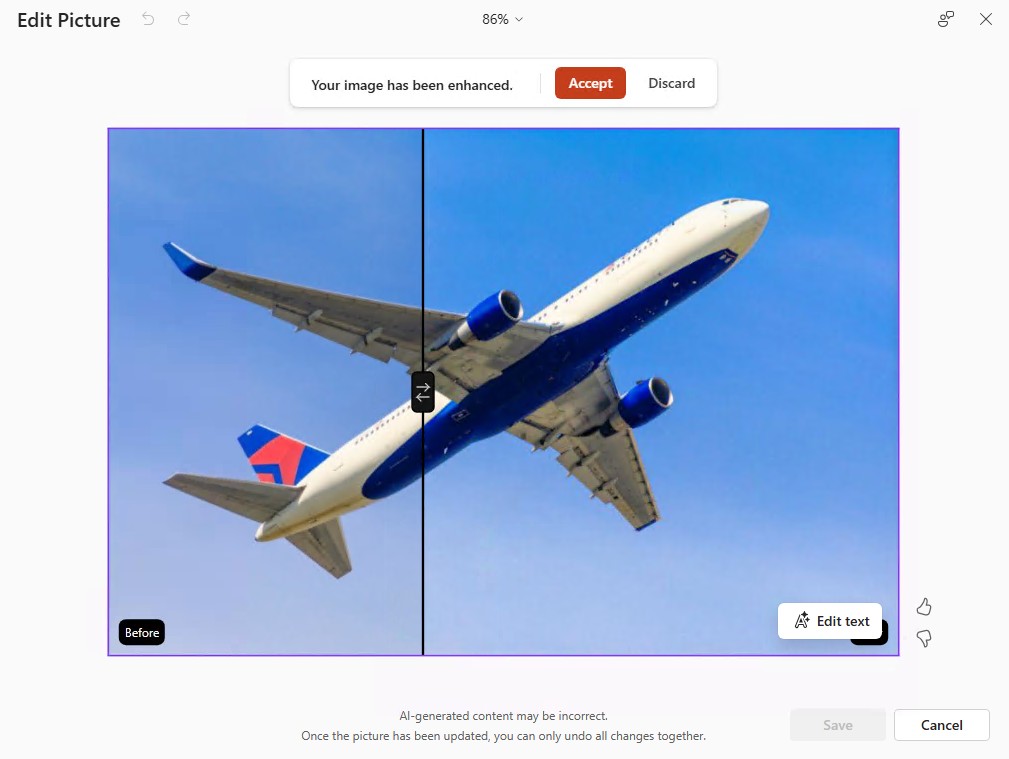
3. Automatically enhance image
Select the Automatically Enhance option to let the AI tool do the work. Alternatively, you can choose the High Quality or Effects options. Use the arrows to switch between the original image and the enhanced version and compare the results.
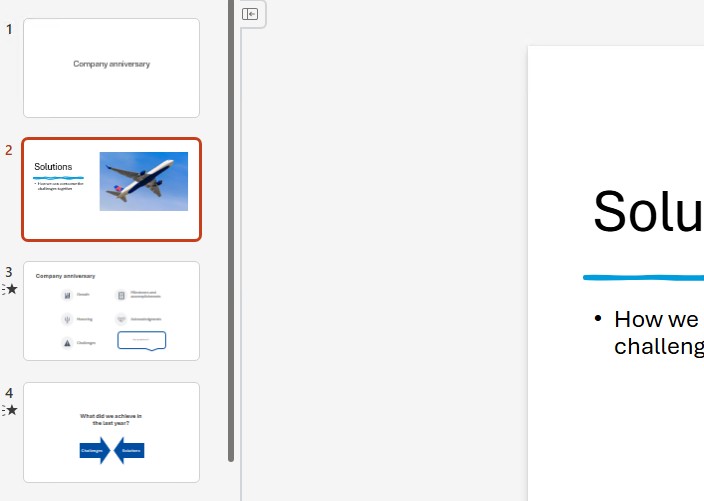
4. Apply changes
Confirm the image optimization by clicking Accept. Once saved, the enhanced image is inserted directly into your presentation without the need for a temporary save.


Show me similar content
Microsoft 365 Hacks


