


Create voting tables with Loop
Show me similar content
Microsoft 365 Hacks
Loop voting tables are ideal for gathering feedback from your team quickly and transparently. They allow you to clearly present options and then evaluate them together—without the need for separate tools or cumbersome voting processes. You can see in real time as colleagues cast their votes, keeping track of all developments. Whether for feedback sessions, decision-making, or prioritization: voting tables help you proceed in a structured and efficient manner.
1. Select a template
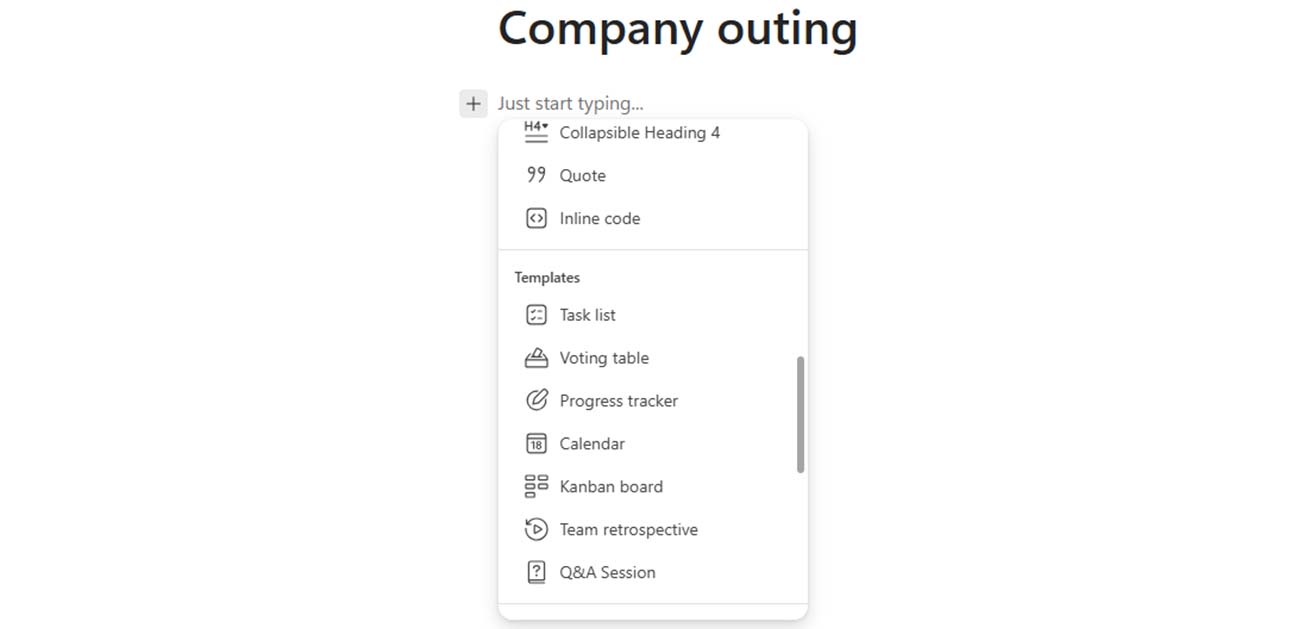
Sign in with your Microsoft 365 account and open the Microsoft Loop app. Click Insert Inline (+) and select Poll from the list of templates. Note: Alternatively, you can also create a Loop component in a channel post, Teams chat, or other Microsoft tools.
2. Edit the table
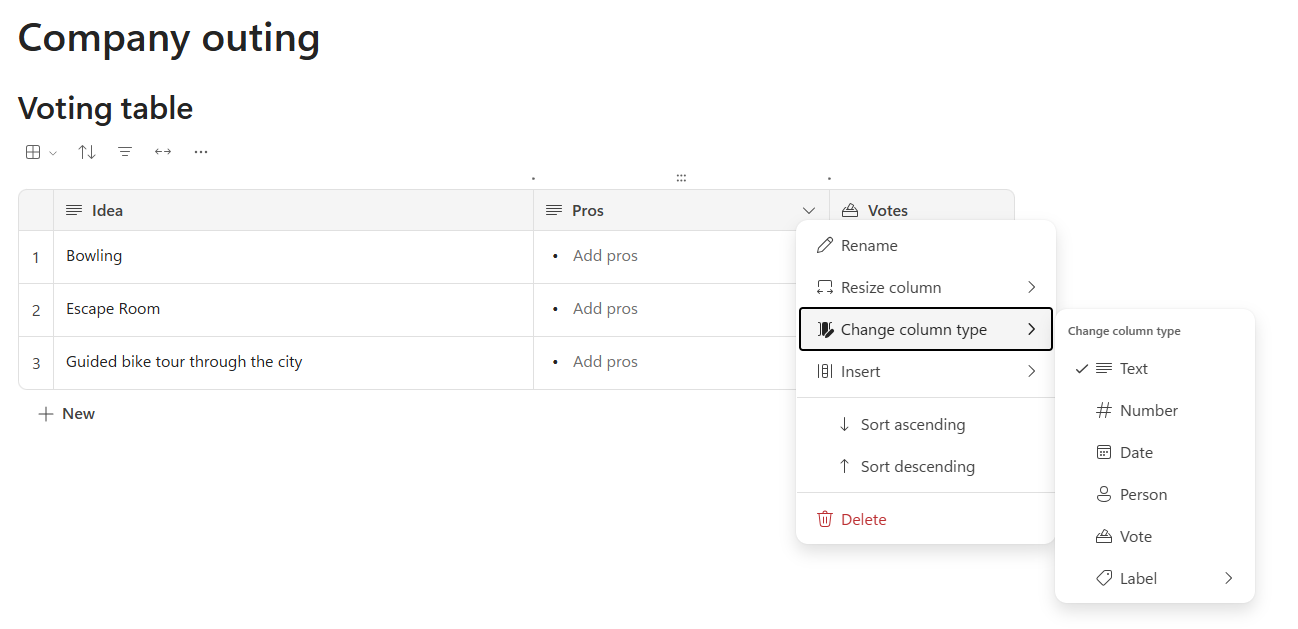
You can add more columns and rows to the table, or delete, rename, or change the formatting of existing ones.
3. Cast your vote
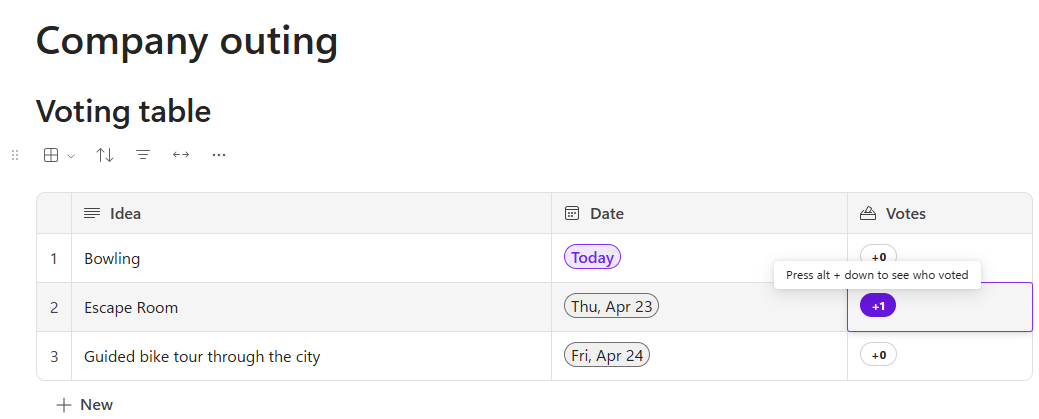
Click the plus icon (+0) to cast your vote.
4. Counting votes
In the “Votes” column, you can see how many people voted for this option. If you hover your mouse over the number of votes, you can also see the people who voted for that option.


Show me similar content
Microsoft 365 Hacks


