


Present Better with PowerPoint Live
Show me similar content
Microsoft 365 Hacks
Those who regularly present in Microsoft Teams know the challenge: Switching between slides, notes, and the meeting window can quickly become confusing. PowerPoint Live offers a feature that addresses this problem. Presenters can start their presentation directly from Teams and gain access to helpful tools such as presenter view, presentation notes, and digital highlights. At the same time, participants are provided with an optimized view. This allows presentations to be conducted more professionally, interactively, and significantly more comfortably. Especially during training sessions, project meetings, or virtual workshops, PowerPoint Live ensures a smooth process and better clarity when presenting.
1. Prepare presentation
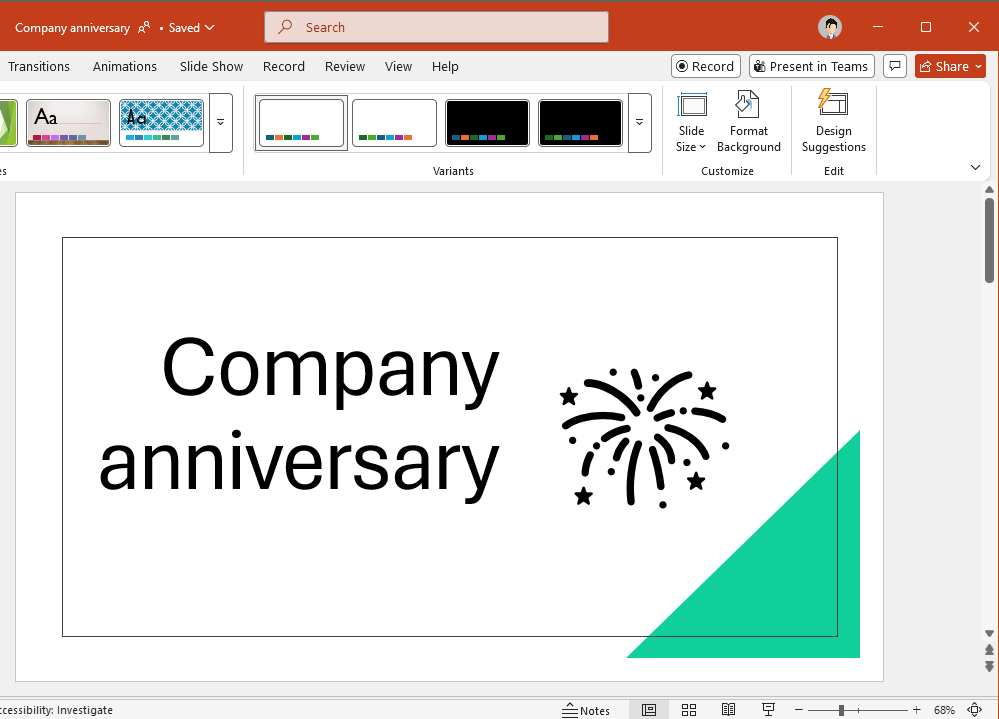
Open the desired PowerPoint file and start a Teams meeting. Click on Present in Teams in PowerPoint to directly prepare the presentation for the meeting.
2. Use tools
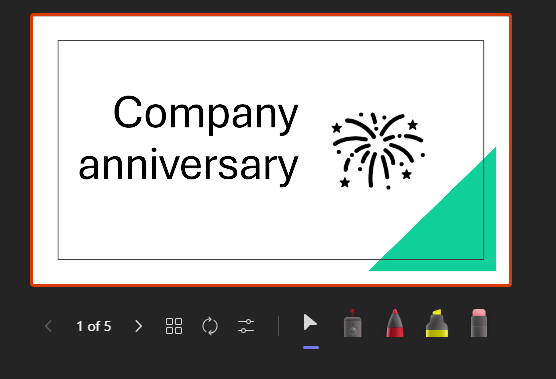
Use the navigation and highlighting tools below the presentation. With pointers or pens, you can specifically highlight important content during the lecture.
3. Keep notes in view
Use the presenter view with your presentation notes on the right side. After finishing, end the presentation by ending sharing and ending the presentation.


Show me similar content
Microsoft 365 Hacks


