


Work efficiently with Whiteboard
Show me similar content
Microsoft 365 Hacks
In hybrid work environments in particular, it is crucial that all participants are equally involved. Microsoft Whiteboard offers numerous tools for this purpose: you can comment on content, use emojis as reactions, or let participants follow your view. Sharing whiteboards is also easy, both in the browser and directly in Microsoft Teams. By using these features in a targeted manner, you can increase transparency, promote active participation, and structure your collaboration in a sustainable way. This turns a digital whiteboard into an interactive workspace.
1. Open Whiteboard
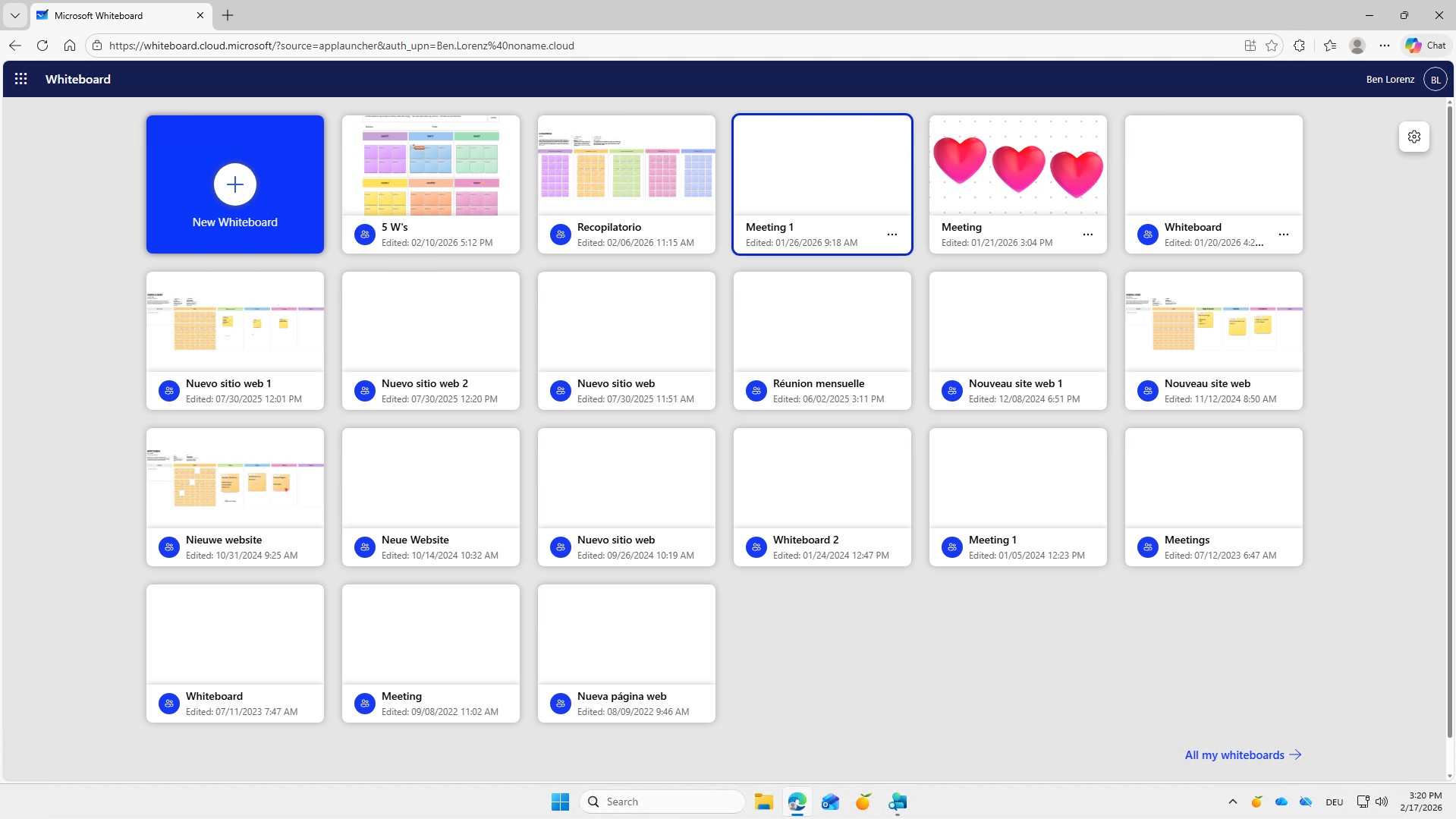
Open Microsoft Whiteboard either directly via Microsoft Teams or via your browser. Sign in with your Microsoft 365 account and select an existing board or create a new one.
2. Share board
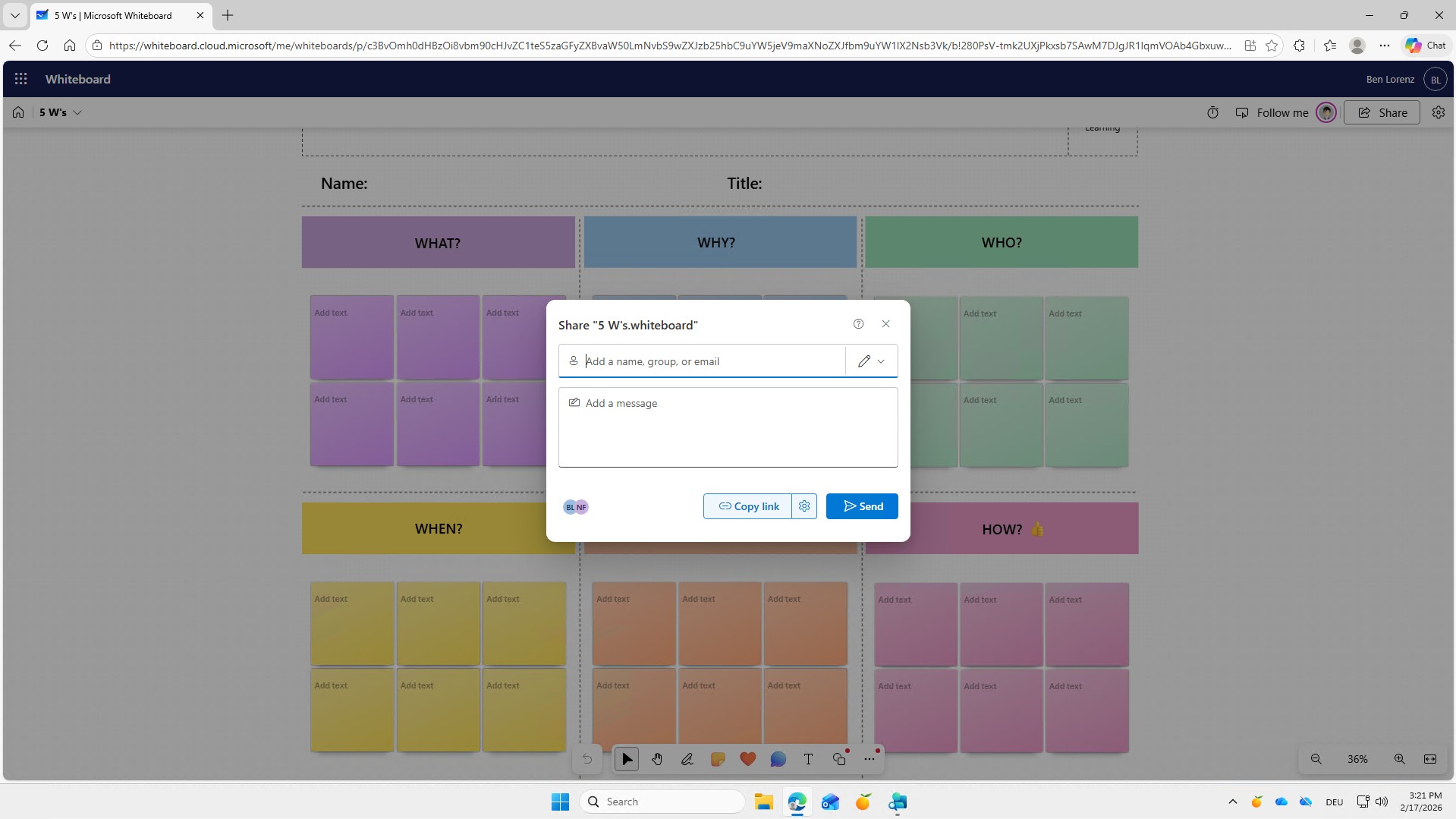
Click “Share” to invite other people. You can set permissions and decide whether participants can edit or only view content.
3. Use interactive elements
Add comments, reactions, or a timer to make your meeting more lively. These features encourage participation and help to steer discussions in a specific direction.
4. Select a template
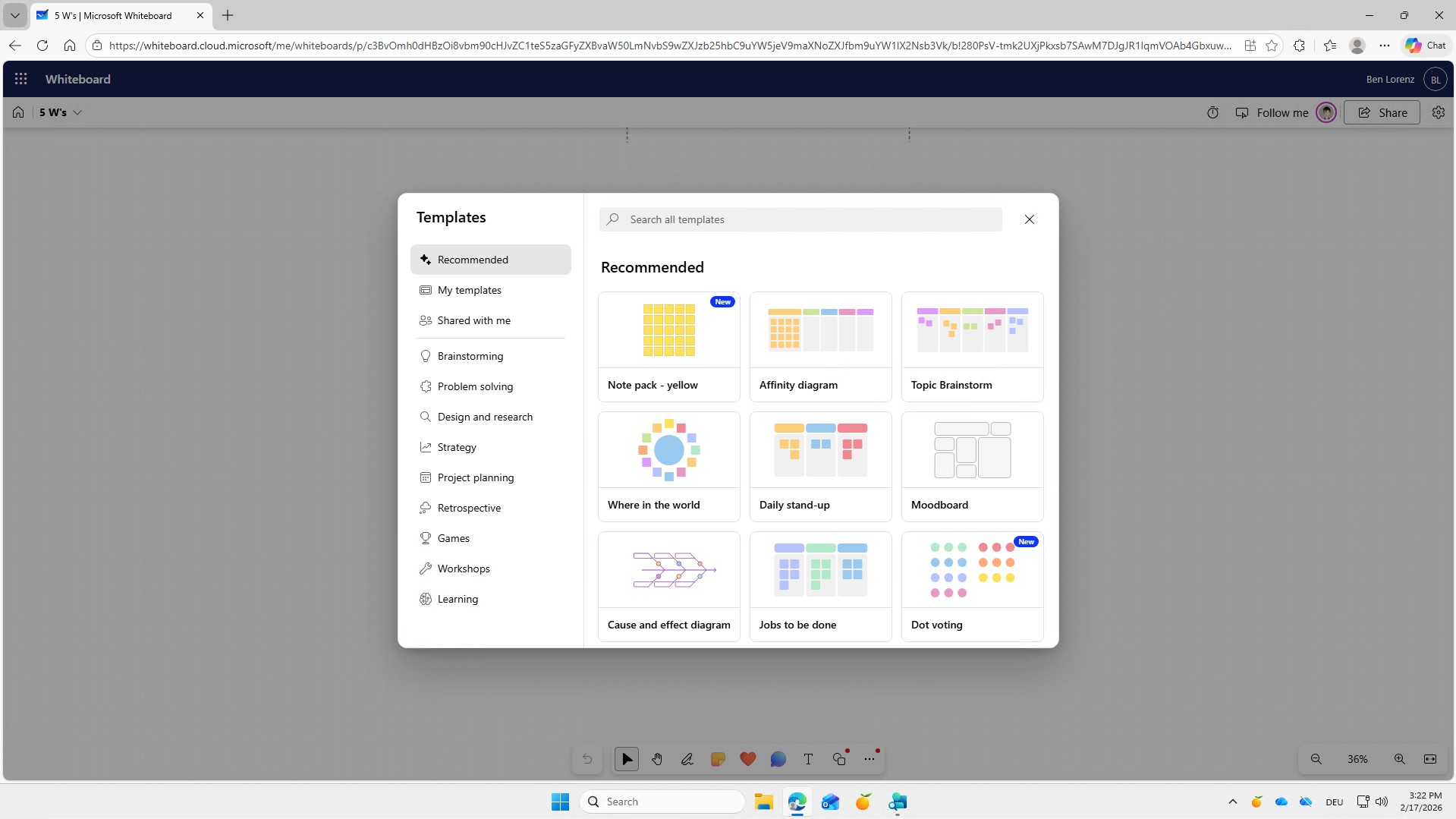
Under “Templates,” you'll find a selection of structured layouts for different scenarios. Select a suitable template and customize it to your requirements.

Show me similar content
Microsoft 365 Hacks


